• DIV & SPAN

    We often use different elements in HTML for styling purposes. For example, we have navigation bars, a hero section, or cards on e-commerce websites where we see multiple elements together like an image, description, and a button etc grouped together inside one container.
    In HTML, there are different types of containers, but the most commonly used one is the <div> element (short for division). A div itself has no visual appearance it’s just a container element used to group or wrap up other html elements.
    Example:
    <div>
       <img src="exampleImage.jpg" alt="">
       <p>Lorem ipsum dolor sit amet.</p>
       <button>Buy</button>
    </div>
    In this case, you will only see the content (image, text, and button) on the page. But with CSS, you can style this div to look like a card.


    Another useful container is the <span> element. Unlike div, which is used for larger sections and div is block level element, <span> is used to group small pieces of text inside a sentence and it is inline level element do not break the text to the next line. You can style that part of the text separately to make it look different from the rest of the paragraph.
  • Non Semantic vs Semantic Elements

    In HTML, div and span are generic containers. They don’t tell us what type of content they hold they’re just used for grouping or styling, they are non meaningful or non semantic elements which don't define their meaning for browser and developer.
    But in HTML5, we also have semantic elements. These are meaningful containers that describe the type of content inside them. Semantic elements help search engines and developers better understand a web page.
    Example with div (generic container)
    <div>
      <h1>Article Heading</h1>
      <p>
    Lorem ipsum dolor sit amet consectetur adipisicing elit. Expedita debitis dolor beatae, nihil id nobis iusto earum dicta iure consequatur saepe reiciendis neque fugit eos veniam culpa vero praesentium consectetur!
      </p>
    </div>
    This works fine but it doesn’t clearly describe what the content is about.
    Example with article (semantic container)
    <article>
      <h1>Article Heading</h1>
      <p>
    Lorem ipsum dolor sit amet consectetur adipisicing elit. Expedita debitis dolor beatae, nihil id nobis iusto earum dicta iure consequatur saepe reiciendis neque fugit eos veniam culpa vero praesentium consectetur!
      </p>
    </article>
    Here, the article element tells browsers and search engines:
    This is an independent piece of content.
    An article doesn’t always mean a blog post or news article. It can also be:
    - a forum post
    - a comment
    - a review
    - a product card
    - or any other self-contained content
    Adding Images with figure and figcaption
    If your article contains an image, you can wrap it inside a figure element.
    <figure>
      <img src="NCS.png" alt="" width="100px">
      <figcaption>Learning HTML & CSS with NaseebCodeStudio</figcaption>
    </figure>
    - figure element: groups the image (or chart, table, code block, etc.).
    - figcaption element: adds a caption or explanation for the figure.
    Note: figure itself has no visual effect it’s just a container.
    Adding Published Date with time
    Often, articles show the published date. At first, you might write:
    <p>
    Published January 5, 2025, 5:00 PM
    </p>

    Semantic Way
    But a more semantic way is to use the time element with a datetime attribute:
    <p>
    Published
    <time datetime="2025-01-05T17:00">
    January 5, 2025, 5:00 PM
    </time>
    </p>
    This makes the date machine-readable (useful for search engines and browsers).

    Why Semantic Elements Matter?

    If your whole site only used div and span, it would be difficult for both search engines and developers to understand your content.
    Semantic elements make your HTML:
    - More meaningful
    - Easier to read and maintain
    - Better for SEO (search engine optimization)
    In short: Use div and span for generic grouping, but prefer semantic elements (like article, section, header, footer, figure, time) whenever possible.
  • Semantic Elements

    🧱 Basic Structure of a Web Page
    Most web pages are built with three main parts:
    - Header: The top part (usually contains logo, navigation, or site info).
    - Main Content: The middle part where the important information goes.
    - Footer: The bottom part (usually contains copyright, links, or contact info).


    Extra Elements

    Aside Sometimes a webpage has a sidebar (for ads, related links, or extra info).
    👉 For that, we use the <aside> element.
    Nav In the header, we often create a navigation bar (menu with links to other pages). 👉 For that, we use the <nav> element.
    Navigation can also appear in the footer or inside a sidebar.
    Section Inside the main content, we might have different parts, like:
    - A Top Products section.
    - A Testimonials section.
    👉For this, we use the <section> element. It groups related content together.
    ⚠️Every <section> should have a heading (like <h2>). If headings are missing, the page may show a validation error.
    Article Use <article> for self-contained content that can stand alone.
    Examples: blog post, news story, or a single product card.
    👉You can have:
    Multiple <articles> inside one <section>.
    Or multiple <sections> inside one <article>.
    💡Important Note: Don’t get confused:
    <header> and <footer> are not only for the whole page.
    You can also use them inside a section or an article (for example, a product card with its own header and footer).
    The exact structure depends on the type of webpage you are building.
    Code Example:👇
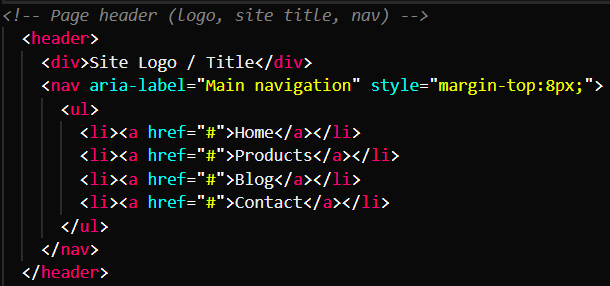
    A strucutre of web page header
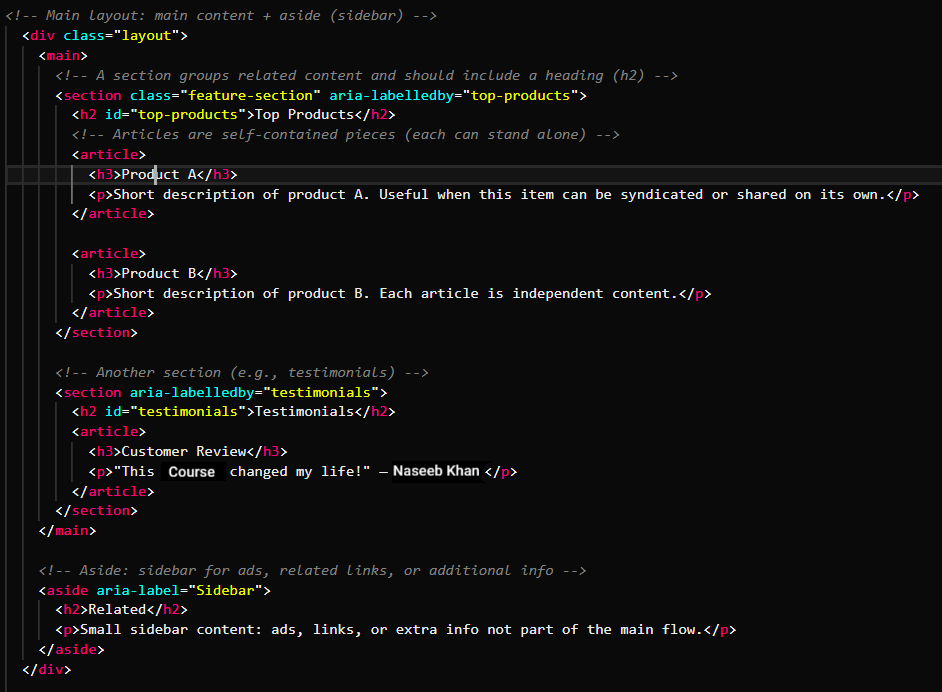
    A structure of web page main section
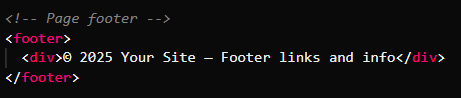
    A structure of main page footer

    HTML Elements and Their Uses

    <main></main>
    This element represents the main content of a webpage or searchable content. Every page should have only one <main>. If we use more than one <main> in the same page, it will cause a validation error (because there should only be one main section).
    <section></section>
    Used to group related content together. Example: You might use a <section> for "About Us," "Services," or "Contact" parts of your site.
    <header></header>
    Represents the introductory content. It can be used at the top of the whole page or at the top of a section/article. Usually contains things like a logo, navigation menu, or title.
    <footer></footer>
    Works like the opposite of <header>. It represents the closing or bottom content of a page or section. Usually contains copyright, contact info, or links.
    <aside></aside>
    Represents content that is not directly related to the main content but still useful. Example: a sidebar with ads, related links, or extra notes.
    In short:
    - Main = main content (only one per page).
    - Section = group related content.
    - Header = top/intro part.
    - Footer = bottom/closing part.
    - Aside = extra or side info.

  • ~ <head> This section gives information about the webpage (like title, description, or links to CSS/JS).
    ~ <p> Defines a paragraph. It can have one line or many lines of text.
    ~ <em> Shows emphasized text. By default, browsers display it in italic.
    ~ <strong> Highlights important text. By default, browsers show it in bold.
    ~ <i> and <b> Old tags used for italic and bold. They are not recommended now because CSS should handle styling, not HTML.
    ~ Headings (<h1> to <h6>) Represent titles and subtitles.
    ~ <h1> is the most important and should be used only once per page.
    ~ Headings must follow order (don’t skip levels, e.g., from <h1> directly to <h4>).
    ~ Entities Used to show special characters.
    ~ <a> (anchor) Creates hyperlinks with the href attribute. Links can go to:
      - Another webpage
      - A location on the same page
      - A file
      - An email address
    Relative vs Absolute URLs:
    ~ Relative URL Path based on the current page.
    ~ Absolute URL Full web address. It can start with / (root of the site) or with http:// (different website).
    ~ <img> Displays images. Always use the alt attribute for:
      - Accessibility (helps visually impaired users).
      - Backup text (if the image doesn’t load).
    ~ <video> and <audio> Used for multimedia. They support attributes like:
      - controls: Shows play/pause buttons.
      - autoplay Plays automatically.
      - loop Repeats again and again.
    Lists
       - <ul> Unordered list (bullets, order doesn’t matter).
       - <ol> Ordered list (numbers, order matters).
       - <dl> Description list (used for glossaries or metadata).
    ~ <table> Displays tabular data.
       - <tr> Table row.
       - <td> Table data cell.
       - <th> Table header cell.
    ~ <div> and <span> Generic containers.
    ~ <div> Block-level container (starts on a new line, takes full width).
    ~ <span> Inline container (stays within a line).
       - Use them mainly for styling when no semantic tag fits.
    Semantic elements (HTML5) Make code more meaningful for search engines and screen readers. Examples:
       - <header> Top section of a page/section.
       - <footer> Bottom section.
       - <nav> Navigation links.
       - <main> Main content area.
       - <aside> Side content (ads, sidebars, extra info).
       - <article> Independent article or blog post.
       - <section> A section of related content.
       - <figure> Image or graphic with caption.
       - <time> Represents a time or date.
       - <mark> Highlights text.